Desktop QA Testing Guide
Comprehensive manual testing checklist for the Sapari desktop app. Run before every major release.
Tests are organized by workflow order and grouped to avoid redundant retesting. Each section builds on previous ones — complete them in order.
Prerequisites
- Desktop browser (Chrome or Firefox, latest)
- Window width > 1024px (desktop breakpoint)
- Test video file (30s+, with speech and silence)
- Test assets: one video, one audio, one image
- Backend running locally or connected to staging
0. Onboarding (First-Time User)
Guided Tour
- First login → spotlight tour starts automatically (after 500ms)
- Step 1: Upload zone highlighted with orange pulsing border, tooltip on right
- Step 2: Smart Cut Engine highlighted, tooltip on left
- Step 3: Audio & Text highlighted, tooltip on left
- Step 4: Director's Notes highlighted, tooltip on left
- Step 5: Analyze button highlighted, tooltip on left
- Step 6: Assets nav item highlighted, tooltip on right
- "Next" progresses through steps, "Skip" dismisses at any point
- Last step shows "Done" instead of "Next"
- Click backdrop to dismiss
- Tour doesn't show again on refresh (server-persisted via
onboarding_seen, localStorage as cache) - "?" icon in header (next to "Core Workflow.") replays tour
- Dark mode: tooltip card, dots, buttons all correct
- Tooltip transitions smoothly between positions (300ms)
- Tooltip never goes off-screen (clamped to viewport)
1. Authentication
Login
- Enter valid email + password → redirects to project list
- Enter invalid credentials → error message appears in red
- Submit with empty fields → validation prevents submit
- Press Enter in password field → submits form (same as clicking SIGN IN)
- Button shows "SIGNING IN..." and inputs disable during request
- Theme toggle (sun/moon) switches light/dark mode
- Theme preference persists after page reload
- "Remember me" checkbox visible between password and "Forgot password?"
- Login without "Remember me" → session cookie max-age ~8h (28800s)
- Login with "Remember me" → session cookie max-age ~30 days (2592000s)
- Close browser + reopen with "Remember me" → still logged in
- Login as unverified user → "Resend verification email" button appears under the error
- Click "Resend verification email" → status changes to "Verification email sent. Check your inbox."
- After ~10 fast failed login attempts → response is "Too many failed login attempts. Please try again later." (HTTP 429), not "Incorrect email or password"
Email verification
- Click verification link in email → "Verified" page with success message
- Click expired/already-used verification link → "Invalid or expired verification link" message (no false success)
- Click verification link multiple times in quick succession → second attempt shows the rate-limited message, not "Verified"
Change Password (Account Settings)
- Change password with correct current password → success message, auto-redirects to login after ~2s
- Login with new password works
- Wrong current password → error message
- Missing current password (non-OAuth) → error message
- New password too short (<8 chars) → validation error
- OAuth user → can set password without providing current password
- After password change → all other sessions terminated
Change Email (Account Settings)
- Collapsible "Change Email" section in Account tab (collapsed by default)
- Shows current email
- Enter new email + current password → success message "Check your new email"
- Wrong password → error
- Same email as current → error
- Visit
/confirm-email-change?token=...from verification email → "Email Changed" page - Invalid/expired token → error page
- Old email receives notification about the change request
- Dark mode: all form elements styled correctly
Change Name (Account Settings)
- Hover name in profile card → pencil icon appears
- Click → inline edit input with check/X buttons
- Type new name → Enter or check → name updates immediately
- Escape or X → cancels without saving
- Name persists after page refresh
Delete Account (Account Settings)
- "Delete Account" link below Sign Out
- Email/password user: click → inline confirmation with password field + "Type DELETE" field; both required, button disabled until filled
- Email/password user: wrong password → "Incorrect password" error
- Email/password user: correct password + "DELETE" typed → account deactivated, logged out
- OAuth user (Google/GitHub, no local password): click → inline confirmation with only the "Type DELETE" field (no password input rendered)
- OAuth user: typing "DELETE" enables CONFIRM; click → account deactivated, logged out (provider session is the identity proof)
- Cancel → resets all fields, hides confirmation
- Dark mode correct on confirmation box
2. Project Management
Create & List
- Click NEW PROJECT → new project appears in grid
- Empty state shows "No Projects Yet" message with NEW PROJECT button
- Project count label updates ("X PROJECTS SAVED")
- Projects sorted newest-first
- Project cards show video frame thumbnail after first clip is processed
- Projects without clips show first-letter placeholder
Edit & Delete
- Click pencil icon → inline name editor appears
- Type new name, press Enter → name saved
- Click X → cancels rename, reverts to original
- Click trash icon → confirmation dialog appears
- Confirm delete → project removed from list
- Cancel delete → project stays
Resume
- Click project card → opens project in editor
- Status badges show correctly: COMPLETE (green), PROCESSING (yellow)
- Switching from one open project to another (sidebar PROJECTS → click another card) shows a brief "Loading project…" placeholder while the new project's clips are restored, then renders the editor — no flash of empty editor and no 403s in the network tab from clip-proxy URL fetches keyed on the previous project.
3. File Upload & Import
Upload
- Drag and drop video file onto upload area → file accepted, progress bar shows
- Click file picker → select file → same behavior
- Upload completes → green checkmark, file listed
- Upload fails → red X with error message
Multipart Upload (files ≥ 25 MiB)
- Upload a 100 MB video → completes; takes noticeably less time than the same file on the prior single-PUT path (parallel parts)
- Upload a 2 GB video → completes; CANCEL UPLOAD button visible next to progress bar
- File at exactly 25 MiB → multipart path
- File at 25 MiB - 1 byte → single-PUT path (no multipart endpoints in network tab)
- Network throttle to "Slow 3G" mid-upload → upload survives URL expiry boundary (refill kicks in transparently)
Multipart Cancel + Resume
- Click CANCEL UPLOAD mid-upload → progress bar disappears, placeholder row removed quietly (not "Upload failed"), POST
/clips/multipart/abortfires in network tab - After cancel, drop the same file in again → upload resumes from the next missing part (network tab:
GET /multipart/partsfirst, then PUTs only the parts not on R2) - Hard fail (close + reopen tab mid-upload, no graceful cancel) → drop same file in → resume still works (IndexedDB persists across reload)
- Edit the file on disk between attempts (touches
lastModified) → drop in again → upload starts from scratch (fingerprint mismatch correctly skips resume) - After successful complete → drop same file in → fresh upload (IndexedDB cleared on success)
Clip Reorder
- Upload 2+ clips → drag handles visible on hover
- Drag clip to new position → clips visually reorder
- Refresh page → order persists (saved to localStorage + backend)
YouTube Import (Viral Plan Only)
- Non-viral user → YouTube import button shows locked state with "VIRAL PLAN" label
- Non-viral user → "+ YOUTUBE" link hidden in sequence editor
- Viral user → paste YouTube URL, press Enter → import starts
- Progress indicator shows during import
- Successful import → clip appears in timeline
- Invalid URL → error message
3b. Failed-Clip Recovery
When any clip in the open project has status === 'failed' OR file_status === 'failed', the dashboard replaces the editor with a dedicated full-page failure screen listing every failed clip with a Remove button. The dual-state check (isMediaFailed in frontend/features/media/status.ts) covers both the per-project lifecycle and the underlying media file's artifact state. There is no in-place retry — media processing has no re-run endpoint, so recovery is remove + re-upload.
Failure Screen Appearance
- Project with at least one failed clip → dashboard renders the full-page failure screen, NOT the editor and NOT the "Loading project…" placeholder
- Heading reads "Clip processing failed"
- Subtext reads "We couldn't process this clip. Remove it and upload again." (one) OR "We couldn't process N clips. Remove them and upload again." (multiple)
- Each failed clip rendered as a row: clip filename on the left, a Remove button on the right
- A "← Back to projects" link is present
- Failed-clips screen takes priority over the "Loading project…" syncing spinner (terminal failure state is surfaced even when other clips are still resuming)
- Screen is gated on
filesMatchProject— switching to a different project never shows another project's failed clips during the resume window - Dark mode renders correctly: white-on-dark heading, gray-on-dark subtext, white-bordered clip rows, transparent Remove button with white border
Remove + Re-upload Recovery
- Provoke a failure (e.g. import a known-broken YouTube URL — private/deleted video — as a superuser, or hand-edit a media row to
status='failed'on staging/dev) - Click Remove → the clip's MediaItem + MediaFile are deleted and the row disappears
- When the last failed clip is removed, the failure screen clears and the dashboard reflows to the normal editor or the upload zone
- Re-uploading the same source starts a fresh upload (new MediaItem) — no ghost FAILED row remains
Remove Button
- Click Remove → only that clip is removed from the project
- Other (non-failed) clips in the project remain intact in the backend (verify via
GET /projects/{uuid}/clipsor by retrying through the editor view if some failed clips remained) - Removing the last failed clip when all other clips are healthy → screen reflows to the normal editor view (or "Loading project…" if proxies are still loading)
- Removing a failed clip when other clips are also failed → row disappears, remaining failed clips stay listed, screen heading updates count ("We couldn't process 2 clips." → "We couldn't process this clip.")
Back to Projects
- "← Back to projects" link at the bottom of the screen → navigates to
/projects - Returning to the project from the projects grid → if failures still exist, the failure screen renders again (state is server-derived, not session-scoped)
Recovery to Normal View
- All failed clips removed → dashboard returns to "Loading project…" or the editor, depending on resume state
- All failed clips successfully retried (each Retry resolves to a healthy clip) → same return path; no manual refresh needed
- Mix of Retry + Remove until zero failed clips remain → dashboard transitions out of failure mode without a page reload
4. Analysis Settings
Silence & False Starts
- Pacing slider: drag from 0 (OFF) to 100 (AGGRESSIVE) → label updates
- False start slider: same behavior, purple accent
- Setting to 0 disables that detection type
Audio & Captions
- Clean Sweep toggle: on/off visually distinct
- Caption language dropdown: select each option → selection persists
- DISABLED → no captions generated
Presets (Configure Step — Analysis Settings)
Saves pacing, false-starts, language, censorship, and director notes — the settings visible on the configure page before analysis runs. Backed by /users/me/presets.
- [ ] No presets by default -- only "Custom" shown initially
- [ ] Save current settings as preset → enter name, save → appears in preset list
- [ ] Click saved preset → sliders and settings auto-adjust
- [ ] Delete preset → removed from list
Cost Estimate & Analysis Mode
- Nothing toggled → shows "MANUAL - FREE" with tooltip (?)
- Set only language → shows "CAPTIONS - ~X AI MIN" (0.5x rate)
- Enable pacing or false starts → shows "AI EDIT - ~X AI MIN" (1.0x rate)
- Switching settings updates cost estimate in real time
- Tooltip explains mode derivation on hover
- Insufficient credits → text turns red
Run Analysis
- Click ANALYZE button → processing begins
- Progress log shows real-time steps
- Analysis completes → edits appear on timeline
- Run picker hidden (only 1 run)
Pre-analysis edits survive the first analysis
Regression cover for KNOWN_ISSUES #42 — these were invisible for five months and only a person
watching the timeline would have caught it.
- [ ] Before running any analysis: place a b-roll asset and make a manual cut
- [ ] Run analysis → both are still on the timeline afterwards, alongside the new AI edits
- [ ] Export → the rendered video contains that b-roll and that cut (not just the preview)
- [ ] Re-analyze → they survive that too (they belong to no run, so every run keeps them)
- [ ] The edit list contains no "ASSET DETECTED / Unknown asset" card spanning the whole video.
That is canvas structure, not an edit; one per canvas would appear if the role filter
regressed. The export stats line should show no phantom +N insert count either.
Drafts
- Save a draft on an analysed project → it appears in the DRAFTS dropdown (it used to vanish)
- Save a draft before analysing, then analyse → the draft is still listed
- Load a draft → aspect ratio, crop, caption styling and flips are restored
- Load a draft → analysis settings are untouched: pacing, censorship, director notes and especially language stay as they were (loading used to silently force language to PT-BR)
- Re-analyze, then open the dropdown → the older draft is listed and labelled "(previous analysis)", not hidden
- Activate that older run → its draft loses the label and applies fully
- Save a draft at 16:9 with crop on, switch the project to 9:16, load the draft → framing re-derives for the new ratio instead of mis-cropping
Re-analyze & Run Switching
- RE-ANALYZE button → confirmation says "Your current analysis will be preserved"
- Re-analyze with different settings → old edits preserved, new run active
- Run picker appears in sidebar (between drafts and re-analyze) when >1 run
- Active run has orange border + "ACTIVE" badge
- Click inactive run → loading spinner, edits/captions switch
- Manual cuts belong to the run they were created in
- Switch back to old run → old edits + transcript restored, manual cuts from that run shown
- Export uses active run's edits
- Run labels show "N cuts · M inserts"
- Dark mode: run picker cards styled correctly
5. Video Player (Collapsed Timeline)
Playback
- Click Play → video plays, button changes to Pause
- Click Pause → video pauses, button changes to Play
- Current time display updates during playback
- Playhead moves along timeline during playback
Seeking
- Click on timeline waveform → playhead jumps to click position
- Arrow Left → seek back 1s
- Arrow Right → seek forward 1s
- Shift + Arrow Left → seek back 5s
- Shift + Arrow Right → seek forward 5s
- Press 0 → reset zoom
Timeline scrub preview (sprite tile)
- Mouse-down + drag the playhead → a thumbnail tile floats above the timeline tracking the cursor
- Mouse-down + drag on plain timeline background (no edit/handle/playhead under the cursor) → seeks immediately on mousedown, then scrubs identically to dragging the playhead (thumbnail floats above the cursor, playhead bar follows the cursor)
- Shift + drag on timeline background while zoomed (>1x) → pans the viewport (legacy pan gesture preserved); no scrub
- Thumbnail updates as the cursor moves across the timeline
- Playhead bar position tracks the cursor during the drag (follows
scrubPreviewMs, not the pre-dragcurrentTimeMs) - Thumbnail stays clamped inside the timeline's horizontal bounds near either edge (does not overflow off-screen)
- DevTools Network tab: zero proxy-URL range requests fire during the drag; exactly one fires on mouse-release
- Release the playhead → video seeks to the released position; thumbnail disappears
- Clip without a sprite yet (e.g., still processing) → falls back to today's per-tick seek behavior (no thumbnail)
- Click playhead at time T, immediately click "Insert asset" → asset's
start_msmatches T (NOT 0); confirmsseekTosynchronously updatescurrentPlaybackTimeMsso quick scrub→action flows don't use stale time
Keyboard Shortcuts
- Space → toggle play/pause (only when not in text input)
- Cmd/Ctrl + Z → undo last edit action
- Cmd/Ctrl + Shift + Z → redo
- Cmd/Ctrl + Y → redo (alternative)
- Delete/Backspace → toggle selected edit active/inactive
- + or = → zoom in
- - → zoom out
Volume
- Main audio volume slider: drag → volume changes
- Range 0-100%
- Volume percentage displays above slider
Edit Segments on Collapsed Timeline
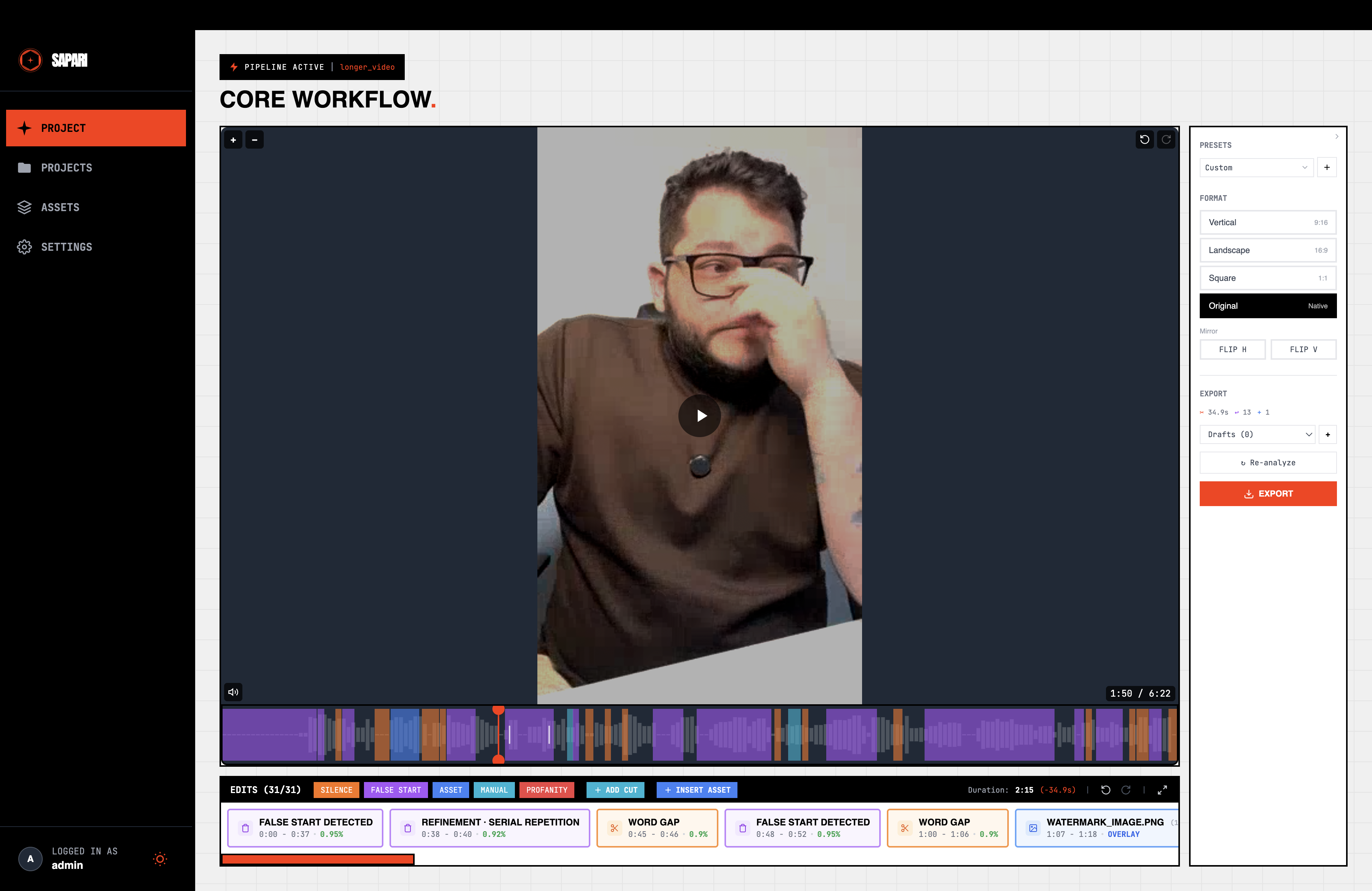
- Silence edits show in orange
- False start edits show in purple
- Manual edits show in cyan
- Asset edits show in blue
- Keep edits show as dashed yellow border (transparent fill)
- Click edit → selects it (highlight visible)
- Click elsewhere → deselects
Overlap Cycling (Collapsed)
- When edits overlap: badge shows "½" (or similar count)
- Click badge → cycles to next overlapping edit
- Non-visible edit shows at reduced opacity
- In non-overlapping region, can still click the edit underneath
Cut/Keep Mode Toggle
- Toolbar shows cut/keep mode toggle (scissors vs check icon)
- Default mode is "cut" -- clicking timeline creates a CUT edit
- Switching to "keep" mode -- clicking timeline creates a KEEP edit
- Keep edits render as dashed yellow border with transparent fill
- Keep regions dim areas outside them (dark overlay on non-keep areas)
- Dim overlays appear on all tracks (waveform, video inserts, audio inserts)
- Edits inside keep regions are fully interactive (clickable, draggable)
- Edits outside keep regions show EyeOff warning badge
- Edit popover shows "Outside keep region" warning for affected edits
- Keep filter button in toolbar toggles keep visibility
- Keep card in edit list shows yellow border with Check icon
- Keep segments have lower z-index so other edits render on top
- Multiple keep regions: only their union is preserved, rest is dimmed
- Playback skips regions outside active keeps (mirrors export behavior)
5b. Keyboard Shortcuts & Playback Speed
JKL Shuttle Control
- L key: plays forward. Press again for 2x, 4x, 8x
- J key: rewinds. Press again for 2x, 4x, 8x
- K key: stops, resets speed to 1x
- K + L (hold K, tap L): step one frame forward
- K + J (hold K, tap J): step one frame backward
- Shortcuts don't fire in inputs (Director's Notes, project name)
Speed Control UI
- Bottom-left of video: speed button beside volume button
- Click speed button to open vertical slider (0.25x to 4x)
- Click elsewhere to close slider
- Click rate label to reset to 1x
- Top-right badge shows current speed when not 1x
- Speed persists across clip boundaries (multi-clip)
Shortcut Help Overlay
- Press ? to open, Escape or backdrop to close
- Lists all shortcuts grouped by Playback, Navigation, Editing, View
- Dark mode correct
5c. Playback URL Refresh (Worker-Fronted Clips)
Clip playback URLs route through a Cloudflare Worker at /media/v1/<jwt> with a short TTL (300 seconds). useMediaProxyUrls refreshes each URL ~30 seconds before expiry so playback never hits a 401. useProxyUrlSwap preserves <video> playback state across the src swap. When refresh hard-fails, SegmentPlaybackErrorBanner surfaces above the video with Retry and Dismiss affordances.
These tests verify the retry-as-contract layer end-to-end. Some require shortening the server-side TTL to make the refresh observable within a test session.
Preemptive refresh (happy path)
Setup — one-time, shortens TTL so refresh fires within ~30s instead of every 5 min:
1. SSH to staging: ssh deploy@100.110.63.6
2. Edit /home/deploy/sapari/.env: change MEDIA_TOKEN_TTL_SECONDS from 300 to 60. Do NOT drop below REFRESH_BUFFER_SECONDS + ~5s. With TTL=30 and buffer=30, refresh fires at mint-landing and the new token would immediately be in the refresh window too — tight loop. TTL=60 gives a ~30s playback-then-refresh cycle.
3. Restart backend: cd /home/deploy/sapari && docker compose restart backend. Wait ~20s for health check.
Test (desktop):
- [ ] Load a project with a clip. Open browser devtools → Network tab. Play the clip.
- [ ] Expect at ~30s after initial playback: a second /api/v1/projects/.../clips/.../proxy request fires.
- [ ] Expect immediately after: a second /media/v1/<different-jwt> fetch fires with a new JWT (compare the last few chars of the token in the URL — they should differ).
- [ ] Expect: playback continues without a visible stall. A brief buffering overlay (<200ms) is acceptable while the new source loads — shows the sprite-tile poster if the clip has a sprite, otherwise a "Buffering..." text overlay. A long stall is a regression.
- [ ] Position is preserved within ±100ms across the swap.
- [ ] Expect wrangler tail --env staging to show the second /media/v1/* returning 200 (or 206 for range requests).
Teardown:
- [ ] Revert MEDIA_TOKEN_TTL_SECONDS=300 and docker compose restart backend.
Backend-down failure (banner + retry)
Setup: same TTL=60 from above, or leave at 300 if you're patient.
Test:
- [ ] Play a clip. Once it's playing, stop the backend: docker compose stop backend.
- [ ] Wait for the refresh window (~30s with TTL=60, ~4.5 min with TTL=300).
- [ ] Expect: after useMediaProxyUrls' 2s retry also fails, SegmentPlaybackErrorBanner appears at the top of the video area (above the <video> element).
- [ ] Expect banner copy: "Playback interrupted — Server problem refreshing playback. Try again, or reload the page."
- [ ] Click Retry in the banner. Nothing happens yet (backend still down).
- [ ] Click Dismiss (X icon). Banner disappears.
- [ ] Restart backend: docker compose start backend. Wait ~20s.
- [ ] Expect the next refetchInterval tick (or user can click Retry again): playback resumes, refreshError clears on the clip, banner stays dismissed.
Session-expired smoke (401 on mint)
Test:
- [ ] Load a project with a clip playing normally.
- [ ] In devtools → Application → Cookies, delete session_id.
- [ ] Wait for next refresh (~30s if TTL=60).
- [ ] Expect /api/v1/projects/.../clips/.../proxy returns 401.
- [ ] Expect frontend ApiClient.onUnauthorized fires → AuthContext cleared → redirected to login.
- [ ] No banner, no retry storm, no surprise UI.
Error copy differentiation
With the backend returning a 500 (stop backend scenario), banner shows "Server problem..." copy. With a network-simulated failure (devtools → Network → Offline), banner shows "Connection issue..." copy. - [ ] Offline mode: banner copy matches "Connection issue refreshing playback..." - [ ] Backend stopped: banner copy matches "Server problem refreshing playback..."
Retry button — iterate across errored clips
Only meaningful when you can force multiple clips to error simultaneously (e.g. all using a broken proxy). In practice, single-clip retry covers this — the Retry button calls refetchClip(uuid) once per errored clip.
- [ ] Multi-clip project, backend stopped, wait for refresh failures on multiple clips. Banner appears once regardless of how many clips errored.
- [ ] Click Retry. Devtools → Network: one /proxy request per errored clip fires.
Dismiss + re-error cycle
- Trigger a refresh failure, banner appears.
- Dismiss. Banner hides.
- Fix the failure (restart backend, restore connectivity), wait for successful refresh,
refreshErrorclears. - Trigger a new failure (stop backend again, wait for refresh).
- Expect: banner re-appears. Dismiss is session-scoped but auto-resets when errors clear.
6. Expanded Timeline Editor
Layout
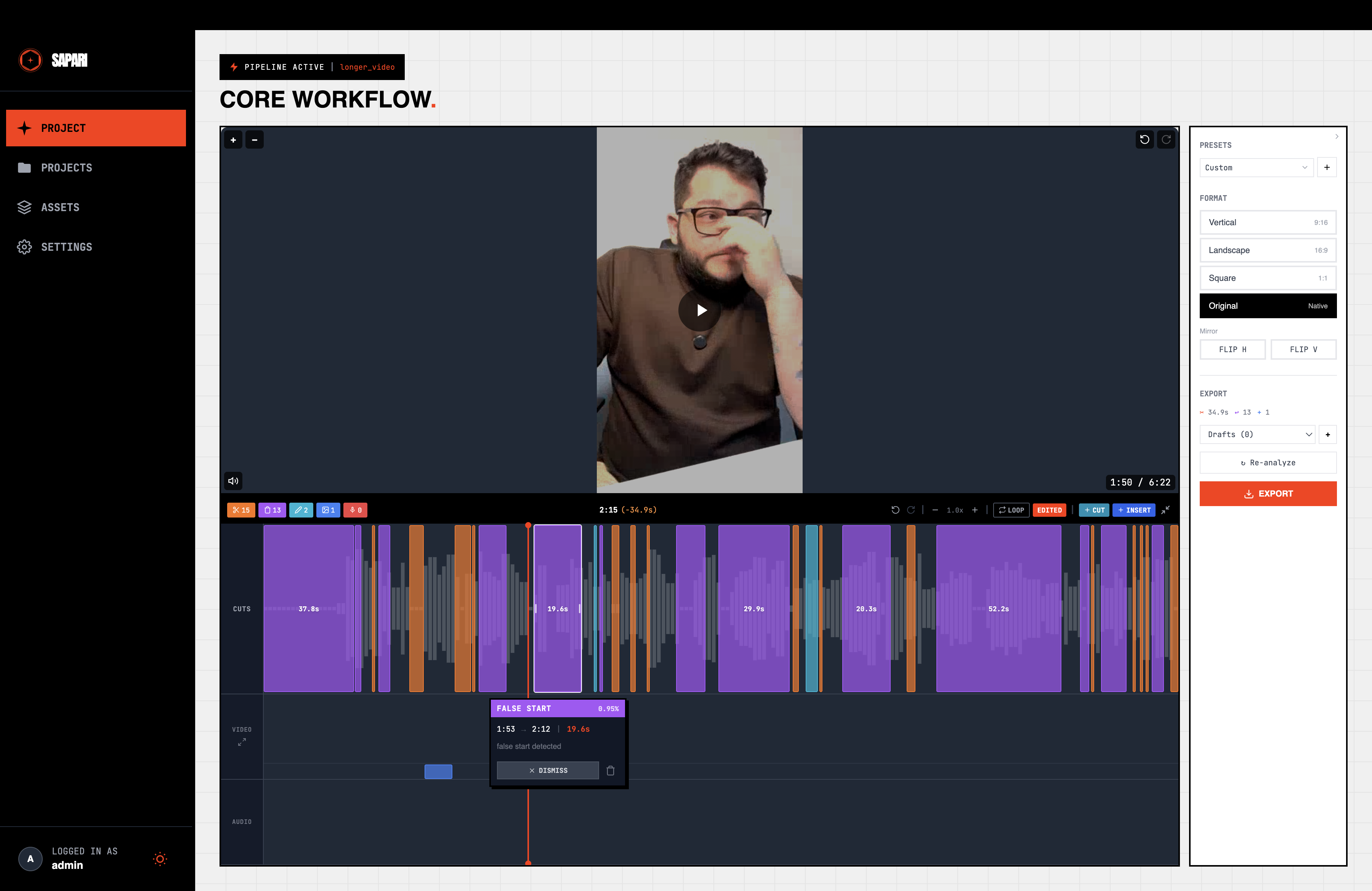
- Two tracks visible: Cuts track (top) and Inserts track (bottom)
- Waveform renders on both tracks
- Playhead synced across tracks and video
Edit Selection & Popover
- Click edit segment → seeks to clicked time, selects edit, popover appears above or below
- Long-press edit segment (>300ms hold, no drag) → seeks to
edit.start_ms, selects edit, popover does NOT open. Subsequent mouseup is suppressed so the long-press and the click handler don't double-fire. Desktop-only — mobile already uses long-press to enter move mode. - Popover shows: type badge with color, time range, duration, confidence (if applicable)
- Popover positioned within viewport bounds (doesn't clip edges)
- Click outside popover → closes (timeline and video remain interactive while popover open)
- Popover actions:
- DISMISS (for active edits) → marks edit inactive
- ACCEPT (for inactive edits) → marks edit active
- Trash icon → deletes edit permanently
- Duration slider on asset edits (renders inside
AssetEditControlsfor asset edits; mirrors mobileAssetFocusMode): - Visible for image overlays, video clips, and audio assets
- Min
FOCUS_MODE.MIN_ASSET_DURATION_MS(0.5s); stepFOCUS_MODE.ASSET_DURATION_STEP_MS(0.1s); label usesformatDurationShort - Drag fires
onDragEdit(..., 'end')live; release firesonDragEditEnd(same trim-handle path) - Slider max per asset type: image → remaining timeline, audio → remaining timeline (loops on render), video →
min(remainingTimeline, asset.duration_ms - assetOffsetMs). INSERT-mode video assets are the exception: cap isasset.duration_ms - assetOffsetMsonly (the timeline extends at render to accommodate)
Drag & Resize
- Click and hold edit body (>4px movement) → enters drag mode
- Drag left/right → edit moves, duration preserved
- Release → position committed
- Click without dragging (<4px) → treated as click (popover opens)
- Hover left edge → cursor changes to col-resize
- Drag left handle → start time changes, end time fixed
- Drag right handle → end time changes, start time fixed
- Cannot resize below minimum duration (segment stays visible)
- During drag: segment shows slight transparency
- INSERT-mode asset with duration > total video (e.g., 30s INSERT on a 21s project): drag the body → splice point clamps to
[0, totalDurationMs]; duration is preserved andend_msextends past total (the timeline grows at render). Edit remains visible and selectable. - OVERLAY/REPLACE asset, body drag (full-length): when
mainDuration >= naturalVisible, end_ms auto-extends tomin(newStart + naturalVisible, total)so the visible portion grows when dragging into more available space. Drag-left increases visible duration; drag-right decreases it. (This is the one path that clampsend_mstototalDurationMs.) - OVERLAY/REPLACE asset, body drag (trimmed): when the asset was previously trimmed below its natural visible length, moving it preserves the trimmed duration (does NOT resize back to full source duration).
- Non-insert asset dragged INSIDE an INSERT region (audio/overlay/replace, merge mode): drop position is encoded as
start_ms = splice + offset_into_insert, which can legitimately exceedtotalDurationMswhen the insert extends past the main video. End isstart_ms + mainDurationwith no clamp to total — clamping here producesend_ms <= start_msand the card disappears on release. Fixed by issue #234. - Non-asset edits (silence/cut) and OVERLAY/REPLACE: move preserves duration; only the at-natural-length OVERLAY/REPLACE auto-extend path clamps
end_mstototalDurationMs. - Drag-to-delete (asset edits only): drag an asset body past any edge of the tracks surface by
DRAG_OFF_TRACK_DELETE_PX→ during drag the segment shows the delete-pending visual; on release past the edge, the edit is deleted instead of having its position committed. Edge rect in expanded mode spans CUTS + INSERTS together (tracksContainerRef), not just the single track under the asset — so dragging an asset across the CUTS↔INSERTS boundary does NOT trip past-bottom and delete on tiny moves (issue #234 follow-up). Single-track surfaces (VideoWindowstrip) use the trackRef directly.
Undo/Redo
- Drag edit → Cmd+Z → returns to previous position
- Cmd+Shift+Z → re-applies the drag
- Delete edit → Cmd+Z → edit fully restored (all fields intact)
- Drag edit twice rapidly → Cmd+Z → goes back exactly one drag (not two)
Zoom & Viewport
- Scroll wheel up → zoom in (point under cursor stays stationary)
- Scroll wheel down → zoom out (same focal behavior)
- + button → zoom in (center-focused)
- - button → zoom out
- Reset button → return to 1x zoom
- Zoom range: 1x to 50x
- Mini-map appears when zoomed >1x
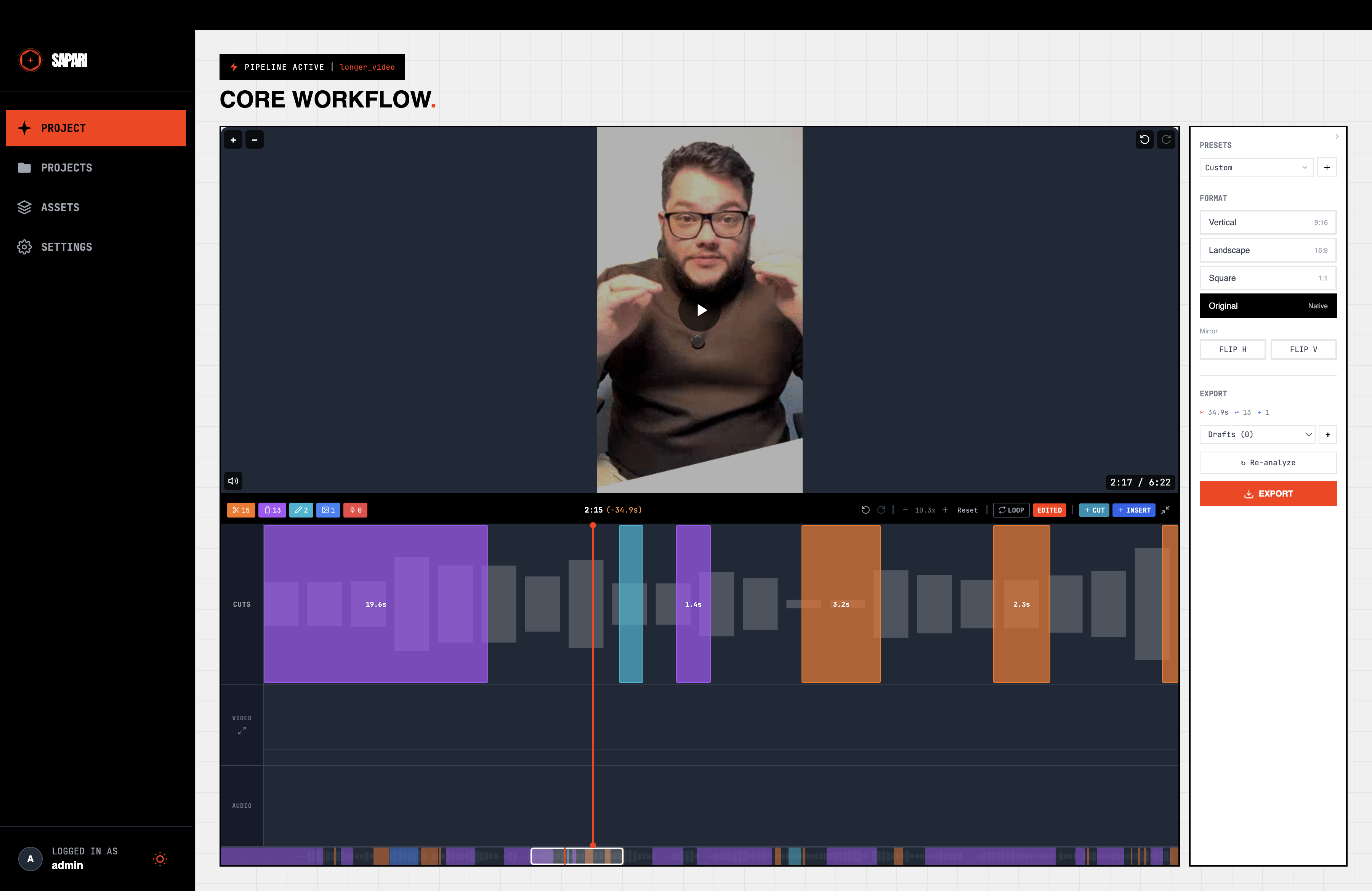
- Drag mini-map viewport rectangle → timeline pans
- Click on mini-map → viewport jumps to that position
- Playhead stays visible (auto-scroll follows during playback)
Loop & A/B
- LOOP toggle → playback loops within current viewport
- SHOW ORIGINAL toggle → plays original unedited video
- Toggle off → returns to edited version
Overlap Cycling (Expanded)
- Overlapping edits show badge with count
- Click badge → cycles visible edit, auto-selects newly visible one
- Hidden edit has pointer-events disabled (can't accidentally interact)
7. Insert Focus Mode
Enter/Exit
- Click focus mode button → switches to multi-lane view
- Back button → returns to normal expanded view
Layout
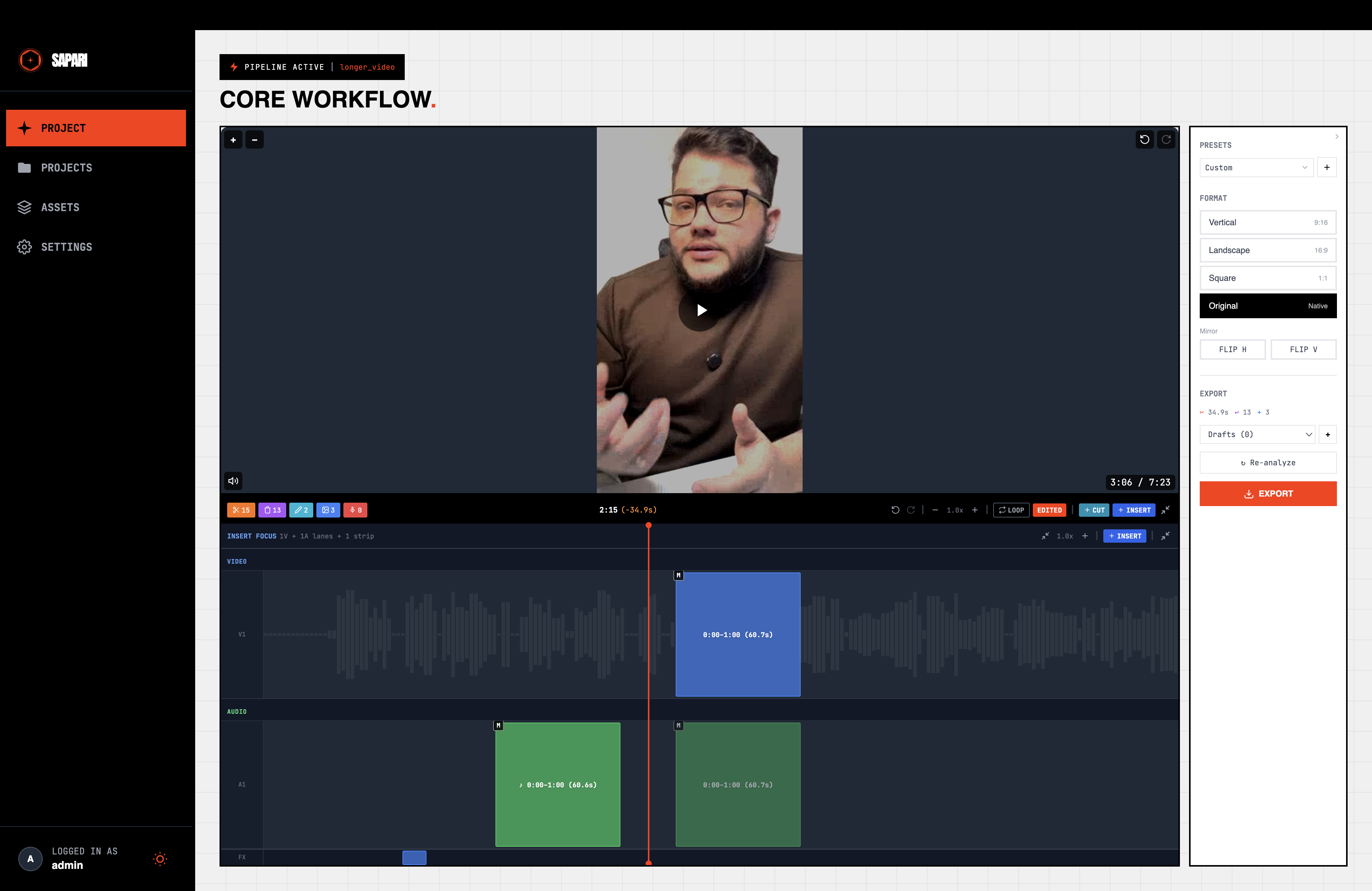
- VIDEO section: timed inserts in lanes, strips below
- AUDIO section: timed audio assets in lanes, strips below
- Assets packed into minimum lanes (no overlap within lane)
- Section headers show section type
Interactions
- Same drag/resize/select behavior as normal expanded mode
- Popover works identically
- Zoom and mini-map work identically
- Overlap cycling badges visible and functional
7b. In-App Notifications
Bell Icon
- Bell icon visible in content header (next to "?" tour button)
- Red dot appears when unread count > 0
- Red dot disappears when all marked read
Notification Panel (Dropdown)
- Click bell opens compact dropdown card (not full-screen)
- Click outside or X closes panel
- Panel shows all unread + last 5 read notifications
- "Read all" button visible when unread exist, marks all as read
- Brutalist shadow styling, dark header
Notification Items
- Type-colored dot: green (success), yellow (warning), red (error), orange (info)
- Read notifications have gray dot
- Time-ago display (now, 5m, 2h, 1d)
- Check button marks individual as read (optimistic update)
- X button archives/dismisses (optimistic, item removed immediately)
Real-Time (SSE)
- Start analysis, wait for completion - notification appears without refresh
- Start export, wait for completion - notification appears without refresh
- Browser tab title shows
Sapari (N)(brand-first, count as suffix) when notifications are unread,Sapari — <project name>when a project is loaded, or justSapariotherwise. Brand-first ordering ensures mobile-tab truncation preserves "Sapari" instead of leading with the project filename. - Tab title resets to "Sapari" on logout / project close
Dark Mode
- Panel colors correct in dark mode
- Orange border, dark header, correct text contrast
8. Asset Library
Asset Groups
- Create group: click +, enter name → group appears
- Rename group: click group name → inline edit → Enter saves, Escape cancels ("All Assets" is not renameable)
- Delete group: click trash → confirmation → removed
- Expand/collapse group: click card → toggles
- Pin group: click pin → stays at top
Upload Assets
- Drag file onto group → upload starts with progress bar
- Upload completes → green checkmark, asset card appears
- Upload fails → red X, error shown
- Multiple files: all upload simultaneously
Asset Cards & Thumbnails
- Hover shows action buttons (rename, configure, delete)
- Video assets show frame thumbnail (center-cropped 240x240)
- Image assets show scaled thumbnail
- Audio assets show Mic icon (no thumbnail)
- Broken/expired thumbnail URL falls back gracefully (no broken image icon)
- Type label visible (VIDEO, AUDIO, IMAGE)
Asset Actions
- Rename: pencil icon → inline edit → Enter saves
- Delete: trash icon → confirmation → removed
- Configure (gear icon): opens behavior editor
Search & Filter
- Search box filters by name (real-time, no submit needed)
- Type filter: All / Image / Video / Audio
- Sort: Name A-Z, Name Z-A, Newest, Oldest
9. Asset Behavior Configuration
Fixed Positions
- Set asset as Intro → always plays at video start
- Set as Outro → always plays at video end
- Set as Watermark → overlaid continuously (locked, can't drag)
- Set as Background Audio → mixed with main audio, no visual
Insertion Modes
- AI-Directed → AI places automatically during analysis
- Manual → only placed when user explicitly inserts
- Unconfigured → no auto-placement
10. Asset Placement & Visual Modes
Manual Insertion
- Click INSERT ASSET in timeline controls → asset picker opens
- Select asset → edit placed at playhead on Inserts Track
- Picking a non-insert asset (overlay / replace / audio-only) while the playhead is inside an existing INSERT region creates the asset anchored to that insert (
start_ms = splice + offset_into_insert,insert_overlap_modes = {<insertEditId>: 'merge'}) so it plays during the insert. Common case: audio asset placed underneath an inserted video clip to soundtrack it. See issue #234. - Picking an INSERT-mode asset while the playhead is inside an existing INSERT region is a silent no-op (no INSERT-inside-INSERT nesting). Same silent bail for intro/outro fixed regions.
- Switching visual mode resets audio defaults (replace: original/0%, overlay: mix/50%/duck, insert: mix/100%)
Visual Mode: Replace
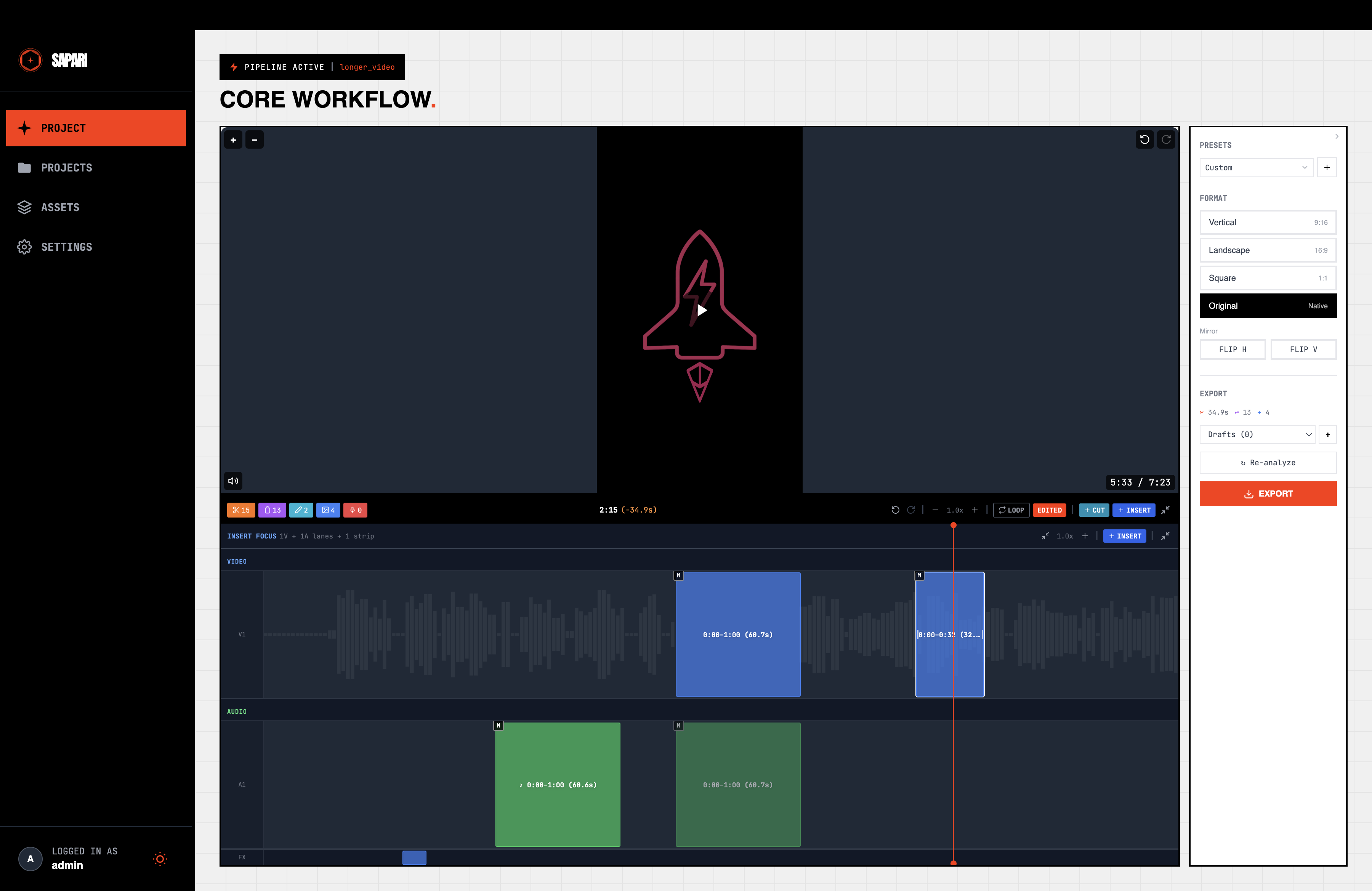
- Asset plays fullscreen, replacing main video
- Main video hidden during asset duration
- Popover shows REPLACE mode indicator
Visual Mode: Overlay
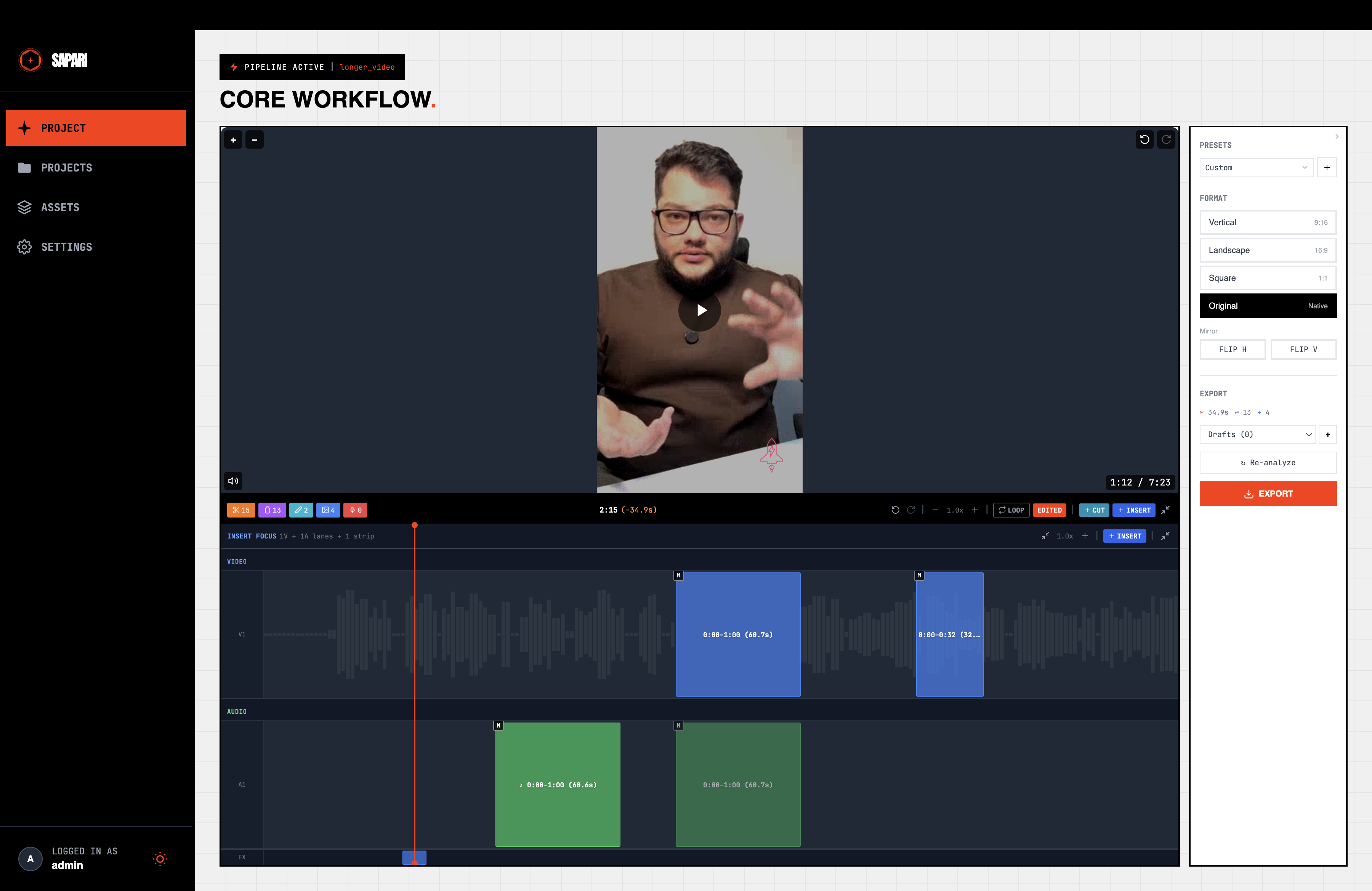
- Asset renders on top of main video (PIP)
- Main video visible underneath
- Position grid in popover: 9 positions + custom
- Size slider: 10-200%
- Opacity slider: 0-100%
- Flip H / Flip V / Rotate buttons work
Visual Mode: Insert
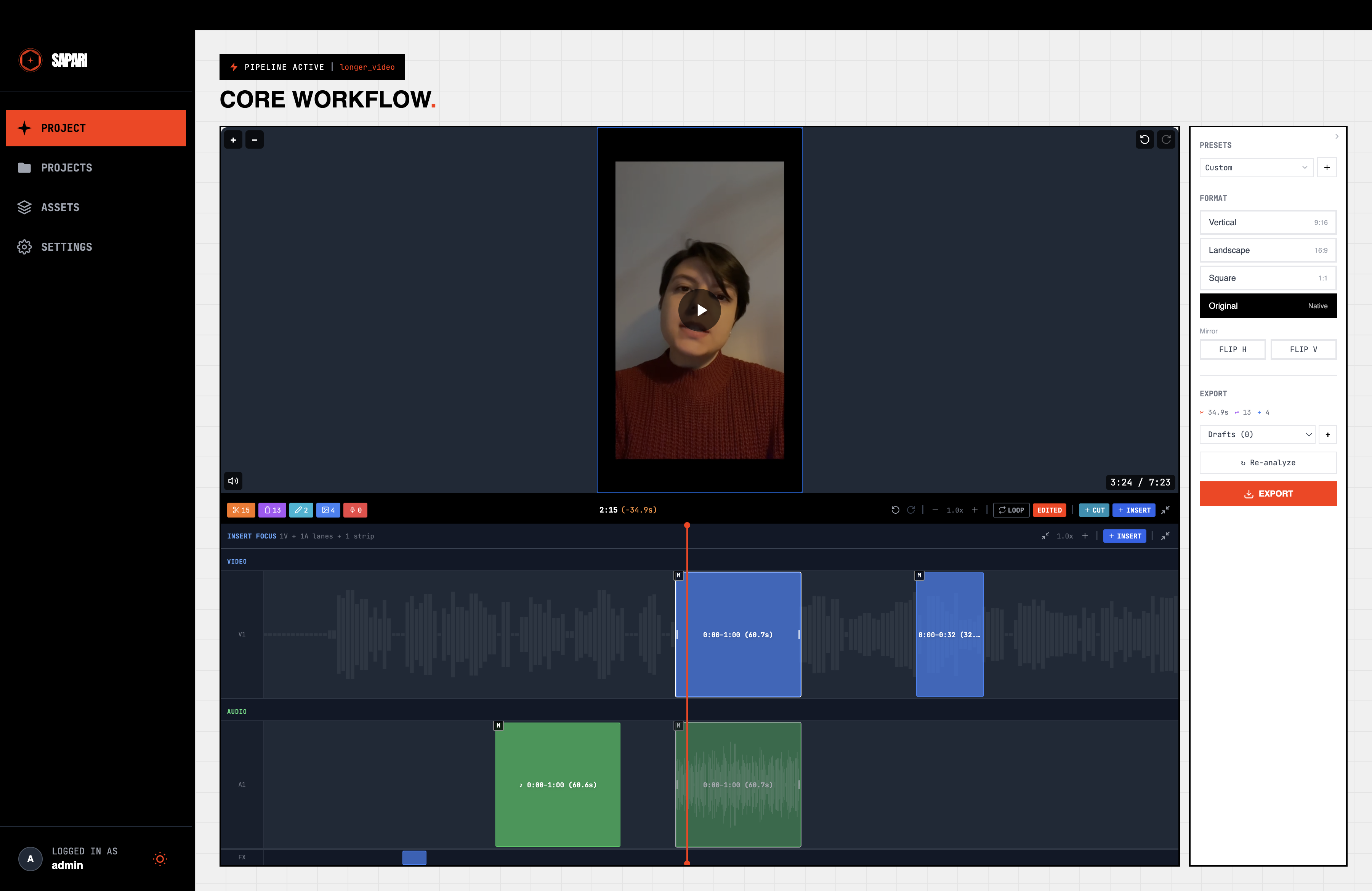
- Asset spliced into timeline, expanding total duration
- Main video splits around insert
- INSERT region visible on timeline
- Image assets display as static image during insert duration
- Video assets play during insert duration
- Playback continues seamlessly through insert regions (no manual re-play needed)
- INSERT-mode popover shows TWO independent switches (NOT the legacy MIX/ASSET ONLY/MUTE enum): one for the insert's own audio (
insert_audio_enabled), one for overlapping anchored audio (insert_allow_overlapping_audio). Volume slider follows the first switch. - Toggling either switch persists across reload. Backend rejects
audio_modeon visual_mode=insert payloads — switching an existing REPLACE asset to INSERT must clearaudio_mode(frontend forces it null) and surface the two booleans instead. - Dimmed timeline rendering: when an anchored audio asset is silenced by
insert_allow_overlapping_audio=false, its bar dims (opacity 60) inside the insert range so the silence is visible.
Visual Mode: None (Audio Only)
- No visual output
- Audio plays per audio mode setting
Audio Modes (non-INSERT only — overlay, replace, audio-only)
- Original Only → only main audio plays
- Asset Only → only asset audio, main muted
- Mix → both play, volume slider controls asset level (0-100%)
- Ducking toggle → main audio reduces during asset playback
- These four options DO NOT appear for INSERT-mode edits; INSERT uses the two booleans above. Verify the popover swaps controls when visual_mode changes.
11. WYSIWYG Overlay Editor
Drag
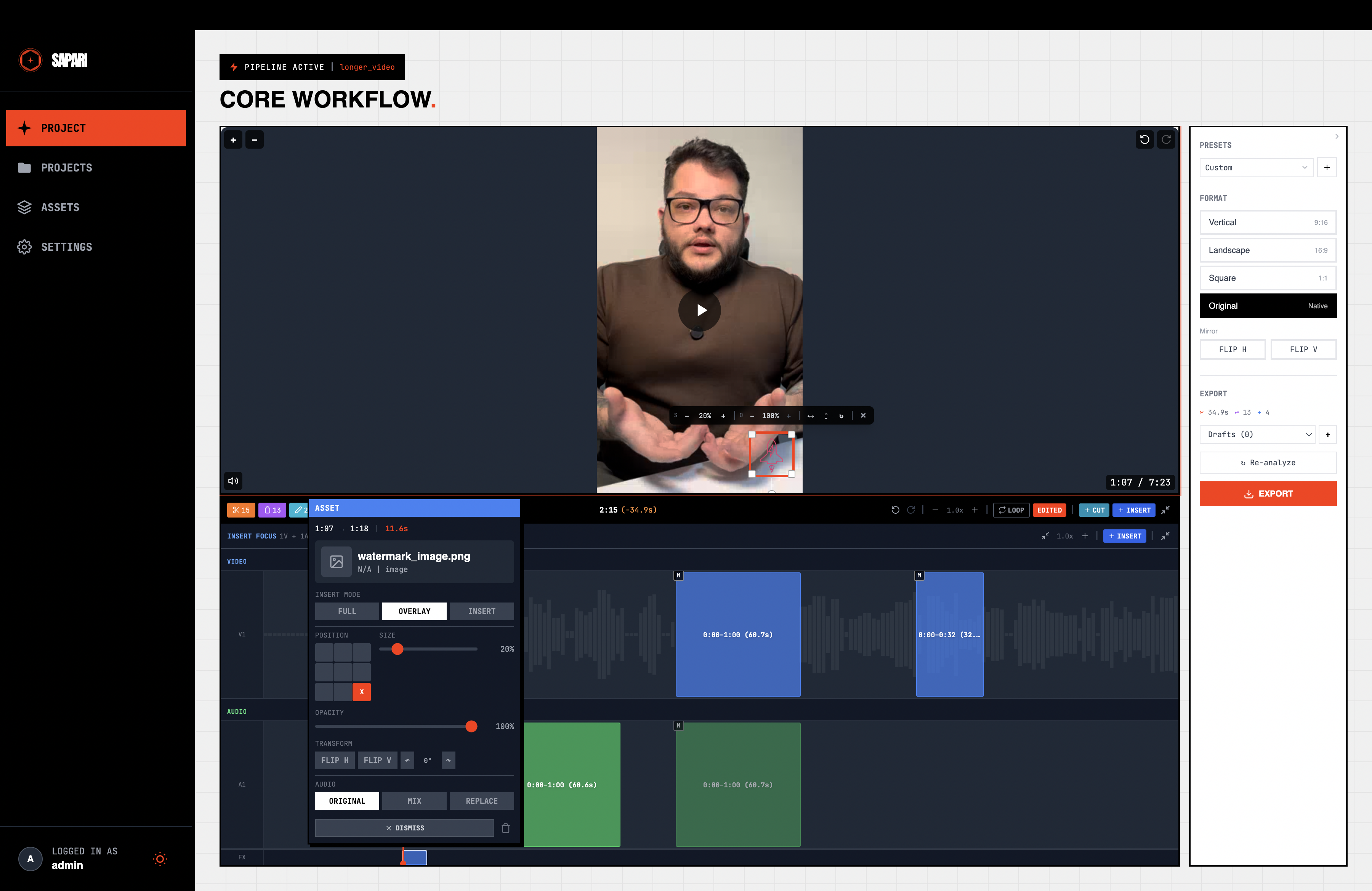
- Click overlay on video preview → selects it (border + handles appear)
- Drag overlay → position updates in real-time
- Snap to grid: overlay snaps when near grid lines (visual indicators appear)
- Release → new X/Y position saved
Resize
- Corner handles: drag to resize (maintains aspect ratio)
- Edge handles: drag to resize one dimension
- Minimum size enforced
- Past-center clamp: drag a corner past the overlay's center → size shrinks to MIN and stays there (no oscillation back up). Math lives in shared
computeResizeScale(shared/lib/resizeScale.ts).
Toolbar
- Floating toolbar appears above selected overlay (when paused)
- Size ± buttons (2% increments)
- Opacity ± buttons (5% increments)
- Flip H, Flip V, Rotate buttons
- Toolbar repositions if near viewport edge
- Playing video → toolbar hides
- Deselect overlay → toolbar hides
Custom Position
- Drag overlay to custom position → popover shows X% / Y% readout
- RESET TO GRID button in popover → snaps back to grid position
12. Insert Overlap Modes (Merge / Split / Anchor)
The toggle cycles MERGE → SPLIT → ANCHOR → MERGE on each click.
Detection
- Place non-insert asset spanning an INSERT → popover shows "Overlaps" section
- Works for: audio-only, overlay, and replace assets
Merge (Default)
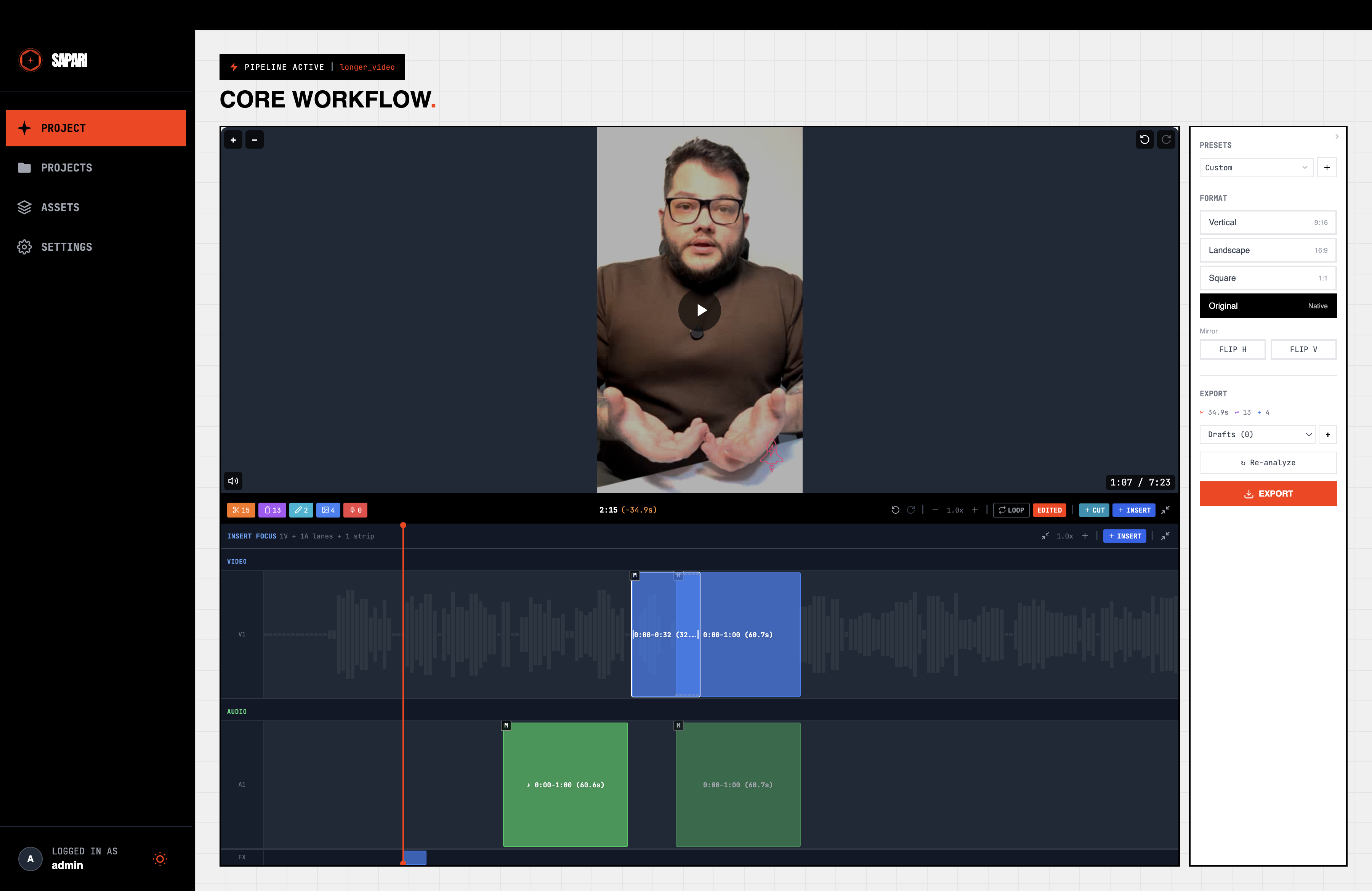
- Toggle shows MERGE (gray) → asset plays through insert uninterrupted
- Merge indicator (dashed border) visible on timeline segment
Split
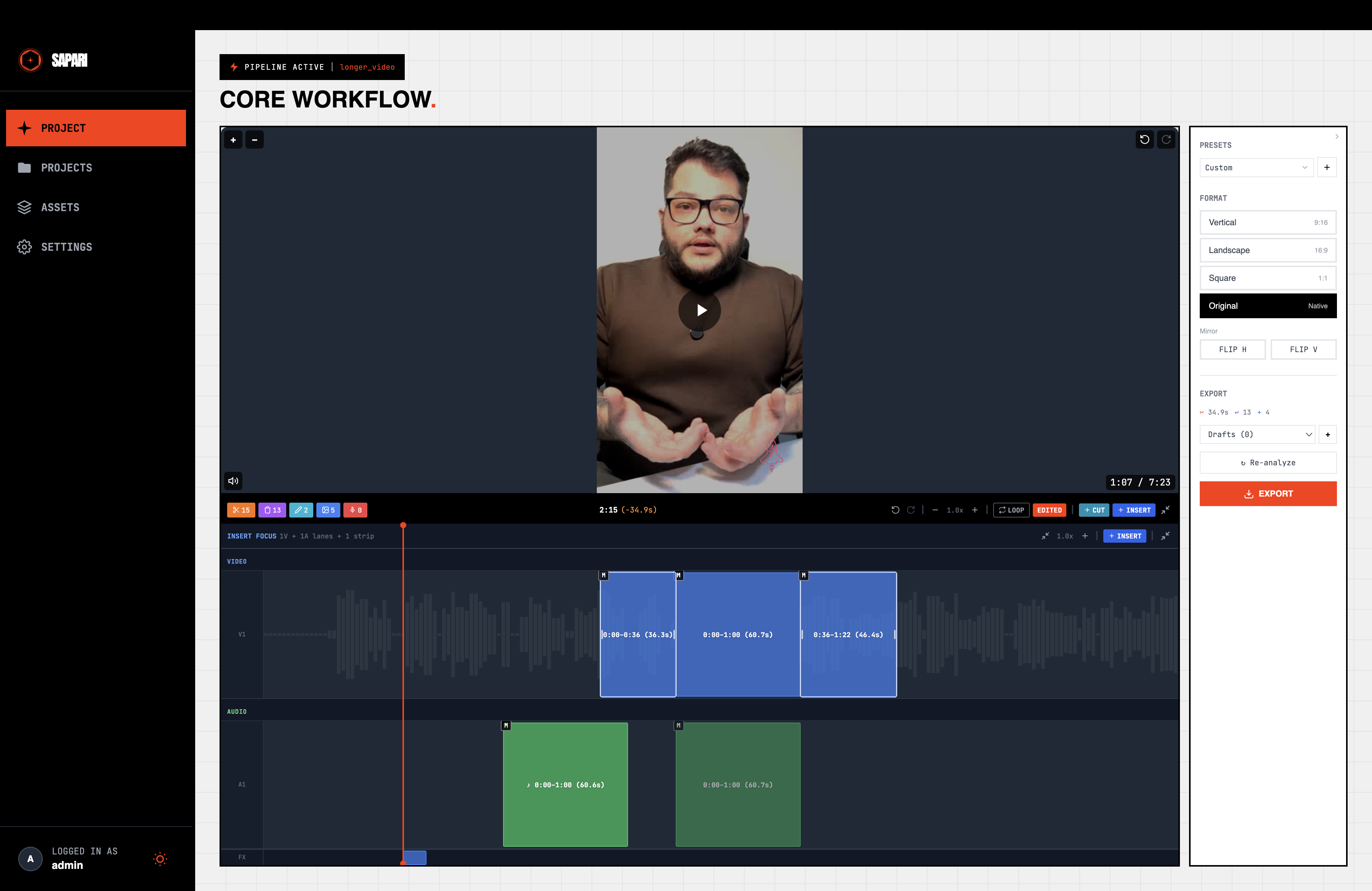
- Click toggle once → switches to SPLIT (yellow)
- Asset visually splits into separate pieces on timeline (gap at insert)
- Asset audio pauses during insert, resumes after
- For overlay: overlay disappears during insert
- For replace: replace pauses, insert video appears, replace resumes
Anchor (issue #234)
- Click toggle from SPLIT → switches to ANCHOR (blue)
- Asset bar renders in two visual pieces: full-opacity slice inside the INSERT region, dimmed slice (
opacity-30) outside - Export only plays the asset during the insert region — overflow portion is clipped (renderer caps end at
insert.output_end_ms) - When asset's start is dragged inside an INSERT, picking ANCHOR snaps the audible window to the insert duration even if the bar visually extends past
Multiple Overlaps
- Asset overlapping two INSERTs → each has independent MERGE/SPLIT/ANCHOR toggle
- Can mix modes (merge with one insert, anchor on another, split on a third)
13. Captions
Display
- Captions render as text overlay on video during playback
- Caption timing synced with playhead
- Position: configurable (top/bottom)
- Captions render ON TOP of asset overlays in preview (place an asset overlay at bottom-center where captions sit → captions stay readable above the overlay). Export matches: download MP4 with the same setup → burned-in captions appear on top of the overlay.
CC Toggle (Video Preview)
- CC button visible bottom-left of video preview (next to speed button)
- Click CC → captions hidden in preview, button dims to white
- Click CC again → captions shown, button turns orange
- Toggle is preview-only — does NOT affect the export panel's "captions enabled" setting (export burn-in stays on while preview overlay is hidden, and vice versa)
- Captions on by default when project has caption lines
Editor
- Click to expand caption editor panel
- Caption list shows all lines with time ranges
- Active caption highlighted during playback
- Auto-scroll follows playhead
Editing
- Click caption text → inline editor appears
- Edit text, press Enter → saves
- Press Escape → cancels edit
- Click reset icon → restores original text
- Click trash → deletes caption line
Styling (in Export Settings)
- Font size slider adjusts caption size
- Position toggle: Top / Bottom
- Font family: Sans / Serif / Mono
- Text color picker
- Background toggle + color + opacity
Drag to Reposition (free-form caption position)
- Hover the caption text in the preview → cursor switches to
move - Click + drag the caption to any point in the preview → caption follows the cursor; underlying video controls are still click-through outside the caption
- Grab the caption near its edge (not the center) and drag → it tracks the cursor from the grab point and does NOT jump its center under the pointer
- Click the caption without dragging (press + release in place) → it stays exactly where it was; it does NOT teleport to a new position
- Release off-snap → caption sticks at the chosen point; position is preserved across reload (saved to localStorage per project)
- Drag the caption into a bottom-left / bottom-right corner → the box stays fully inside the frame (does not spill past the bottom or side border in the preview)
- Hold Shift while dragging → the 3×3 snap grid (dashed lines + dots) is visible, stays fixed in place, and the caption snaps to the 9-point grid (corners / edge mids / center)
- Release on any snap anchor with Shift → the caption lands on the dot you released on (no jump/teleport on release) and persists as free-form coords
- Drag a long caption near a left/right edge → it wraps onto more lines and stays fully in-frame (does not run off the edge), centered on the drop point
- Pick a named Position toggle (Top / Center / Bottom) → free-form X/Y are cleared (release-on-snap semantics)
- Drag the caption, then Ctrl/Cmd+Z → it returns to its previous placement; Ctrl/Cmd+Y (or Shift+Z) → it moves forward again
- Pick a Position toggle, then Ctrl/Cmd+Z → the position change is undone (the picker change is on the same undo stack as drags and edits)
- Export with a free-form caption position set near an edge → burned-in caption in the MP4 lands at the dragged point AND wraps in-frame (no off-edge overflow), matching the preview
- Export with no free-form position set → captions render via the existing
positionenum + margin layout, unchanged from prior behavior
13c. Vertical Crop
CROP/BARS Toggle (SettingsSidebar FORMAT section)
- Select non-native aspect ratio (e.g. 9:16) → CROP/BARS toggle appears
- Click CROP → video auto-zooms to fill, enters adjusting mode
- Click BARS → video letterboxed with background color
- Same aspect ratio as source → no toggle shown
Zoom + Pan (adjusting mode)
- Scroll wheel zooms in/out
- Zoom snaps at fill level (no bars)
- Zoom slider works (1x to 10x)
- Drag to pan — smooth, axis-locked (mostly-horizontal drag locks vertical)
- Pan snaps to center when close
- Play button hidden during adjusting (drag works)
- Speed badge doesn't scale with zoom
Accept Crop
- Click DONE → crop locked, video plays normally
- Click ADJUST CROP → re-enters adjusting mode
- Export with crop → FFmpeg crop matches preview (no bars if filled)
- Export without crop (BARS mode) → letterboxed as before
Overlays Stay Visible Under Crop (regression for #119)
- Crop enabled +
caption_position=top→ captions visible at top of cropped frame (not pushed off-screen) - Crop enabled +
caption_position=bottom→ captions visible at bottom of cropped frame - Crop enabled + asset insert with overlay visual mode → overlay still visible at its configured position, not cropped out
- Crop enabled + trial/free user watermark → watermark still visible at bottom-right corner of cropped frame
- Changing zoom/pan doesn't visually scale or shift any overlay (only the video moves)
- Preview matches the exported MP4 — captions, inserts, and watermark land in the same places
13d. Per-Asset Crop (issue #235)
Crop control on REPLACE / INSERT video and image asset edits — independent of the main-video crop in 13c. Audio-only assets and OVERLAY mode are out of scope.
Toggle Visibility (EditPopover)
- Select a REPLACE or INSERT asset edit where the source aspect matches the project's target → AssetCropEditor is hidden (no reframe needed).
- Select a REPLACE or INSERT asset edit where source aspect differs from target → AssetCropEditor appears with CROP/BARS toggle.
- Audio-only asset edit → AssetCropEditor not rendered.
- OVERLAY mode → AssetCropEditor not rendered (overlays use
overlay_size_percent).
Toggle On Behavior
- Click CROP → zoom snaps to
computeFillZoom(sourceAspect, targetAspect), pan resets to (0, 0). - Without the snap-to-fill, toggle-on at zoom=1.0 would still letterbox — verify the auto-fill actually fills the frame.
- Click BARS → reverts to letterbox; persisted zoom/pan retained for next toggle-on.
Zoom + Pan
- Zoom slider range 1.0x – 10.0x (matches main-video crop bounds).
- Drag inside preview to pan — axis snap (mostly-horizontal locks vertical, mostly-vertical locks horizontal).
- Pan snaps to center (0, 0) when close.
- Drag inside the asset preview doesn't bubble up and pan the main-video crop or scrub the timeline.
Preview Parity
- CROP enabled → asset video uses
object-cover+computeCropTransform(zoom, panX, panY); the asset fills the frame with no black bars. - Other asset edits in the same project keep their letterbox behaviour unchanged.
- Main video crop (if enabled) and per-asset crop coexist — neither affects the other's transform.
Intro / Outro / INSERT With Crop (Layer Split)
- Add an intro asset with source aspect differing from the project's target → toggle CROP on the intro edit → the intro preview fills the frame.
- Same intro with main-video crop ALSO enabled at any zoom → the intro is NOT double-cropped. Visual zoom on the intro matches the per-asset zoom only (the project crop applies only to main clips).
- Toggle CROP off on the intro → intro letterboxes; main clips still honor the project main-video crop.
- Same scenarios for outro and for INSERT-mode asset edits — each gets its own independent crop, none inherit the main-video crop transform.
- Toggle a per-asset crop via the AssetCropEditor → the change persists (PATCH succeeds with a non-empty body and the toggle survives reload). Regression guard for the camelCase→snake_case translation table.
Swap-Mode Reset
- Select an asset edit with crop enabled, swap the underlying asset → AssetCropEditor returns to disabled state, all four crop fields reset.
- If you re-enable crop on the new asset, zoom snaps to the new asset's source-aspect fill (not the old asset's).
Project Aspect Change Adapts Crop
- Persist crop on an asset in a 16:9 project, then change project format to 9:16 → preview re-fills (no fresh letterbox), zoom/pan auto-adapt against the new target.
- Export after aspect change → render matches preview.
Legacy Assets (Pre-Migration)
- An asset whose
MediaFile.width/heightare NULL (legacy upload predating the dimension probe) → AssetCropEditor toggle is disabled with a re-upload tooltip. - Edit row still round-trips its
asset_crop_*fields (saved-but-disabled state survives reload). - Render for legacy asset falls back to letterbox; no warning surfaced to user.
Export Parity
- Export with per-asset crop → FFmpeg
scale=<cover>,crop=<region>,scale=<exact target>,setsar=1chain matches preview, no letterbox bars on the cropped asset. - Mixed export: one asset cropped, one asset letterboxed, captions present → both render correctly, captions still on top of asset.
- Image asset with crop → still renders for full segment duration (no flicker).
13e. Sidebar Presets (Editor — Format + Caption Style)
Saves the sidebar's visible state: aspect ratio, letterbox background, caption style/font/size/position/color/length, caption background (enable/color/opacity), and video flip H/V. Distinct from the configure-step Analysis Presets — this one is backed by /users/me/preview-presets.
- No presets by default -- only "Custom" shown initially
- Save current sidebar state as preset → enter name, save → appears in dropdown
- Click saved preset → aspect ratio, caption style, caption font, caption size, caption position, caption color, caption length, caption BG enable/color/opacity, video flip H/V all update
- After picking a preset, change any setting → dropdown resets to "Custom"
- Re-pick the same preset → values re-apply (drift detection allows re-selection after edits)
- Delete preset → removed from dropdown; if it was selected, dropdown switches to "Custom"
- Saving preset A, then changing settings and saving preset B, then clicking A restores A's format+caption state
14. Export
Create Export
- Click export button → export panel opens
- Fill name, select platform (YouTube/TikTok/Instagram/Custom)
- Select resolution (720p/1080p) -- 2K/4K post-launch (Phase 12J, Viral tier)
- Toggle captions on/off
- Set main audio volume (0-100%)
- Click CREATE EXPORT → export added to list as pending
New Export modal — viewport overflow
- Resize browser window to a short height (~600px or less) so the New Export form is taller than the viewport.
- Open the modal: outer scrolls vertically; START EXPORT and CANCEL buttons reachable at the bottom via scroll.
- At normal heights (≥800px) the modal stays visually centered (existing UX preserved).
Export Progress
- Rendering export shows spinner + progress percentage
- Progress updates in real-time (SSE)
Download & Manage
- Completed export shows green checkmark + download button
- Click download → browser download starts (MP4)
- File size and duration displayed
- Failed export shows red X
- Delete export: trash icon → confirmation → removed
- Mobile-decodable output: download a completed export and run
ffprobe. The video stream should reportpix_fmt=yuv420pandprofile=High(NOTHigh 4:4:4 Predictive). VerifiesVIDEO_PIX_FMTis forced through every render path so phone hardware decoders can play the file.
15. Browser Tab Context
- No project → tab shows "Sapari"
- Open project → tab shows "ProjectName - Sapari"
- Analyze → tab shows "Analyzing..." (with notification prefix if unread)
- Analysis complete → tab returns to "ProjectName - Sapari"
- Notification arrives → tab shows "(N) ProjectName - Sapari"
- Mark all read → prefix disappears
15b. Welcome Modal (Trial Users)
- First login as trial → welcome modal appears before onboarding
- Shows credit balance, tier name, pricing (AI Edit 1x, Captions 0.5x)
- Mentions watermark, credit conversion on subscribe, lock-out after trial
- Click "GET STARTED" → modal dismisses, onboarding starts
- Refresh → modal does not reappear
- Non-trial user → modal never shows
15c. Shortcut Discovery
- Settings > Editor tab > Help section shows "Keyboard Shortcuts" button
- Click → ShortcutOverlay opens
- ESC or backdrop click dismisses
15d. Error Handling
- Trigger a 422 (e.g. bad request) → generic message + support ID shown
- No internal field names or stack traces visible to user
- Support ID is 8 characters, different each time
16. Edge Cases & Regression
Empty States
- No projects → empty state with NEW PROJECT button
- No edits detected → timeline empty, can still add manual edits
- No assets → asset library shows empty state
- No captions (language disabled) → caption panel hidden or shows empty
Boundary Conditions
- Very short video (<5s) → analysis and editing still work
- Very long video (>30min) → no performance degradation in timeline
- Same asset placed twice → both instances play independently
- Maximum zoom (50x) → timeline remains usable
- Popover at viewport edge → repositions to stay visible (horizontally and vertically)
Undo/Redo Integrity
- Undo after delete → all asset fields restored (visual mode, position, audio settings)
- Undo drag of edit into insert region → anchor position correctly restored
- Undo drag of edit out of insert region → anchor position correctly cleared
- Undo after merge→split toggle → positioning updates correctly
- Undo after split→anchor toggle → bar returns to split rendering (dimmed-overflow piece removed)
- Undo after anchor→merge toggle → dimmed-overflow piece reappears at full opacity
- Undo delete of an INSERT-mode asset (regression for the EditCreate validator: the restore payload must send
insert_audio_enabled+insert_allow_overlapping_audio, NOTaudio_mode). Without the branch, the recreate request 422s and the asset stays deleted. - Undo delete of an INSERT-mode asset preserves all 4
asset_crop_*fields (zoom/pan survive the round-trip). - Undo delete of a REPLACE or OVERLAY asset still sends
audio_mode(legacy field) — the INSERT branching mustn't affect non-INSERT recreate. - Rapid play/pause (20x) → audio still works (no stuck states)
Intro / Outro As INSERT Asset (analysis pipeline regression)
- In Assets, set a video asset's behavior
visual_mode='insert'and assign it asfixed_position='intro'for a project. - Run analysis on the project → completes without error. Regression for the analysis worker's
_build_asset_edit_create: legacyaudio_mode='original_only'on the AssetBehaviorConfig must map to the two INSERT-audio booleans, not be passed through to EditCreate (which rejects it for INSERT). - Verify the resulting intro Edit row has
insert_audio_enabledset per the mapping (ORIGINAL_ONLY→ false,ASSET_ONLY/MIX→ true) andaudio_modeis NULL. - Same for outro asset configured as INSERT, and for any AI-directed INSERT asset placement.
Timeline Consistency
- Video overlay preview matches timeline position for all edit types
- Edit at time 0 → renders correctly (no off-by-one)
- Edit at video end → renders correctly
- Resize edit to minimum → segment visible, handles accessible
Performance
- 50+ edits on timeline → no lag during scroll/zoom
- Drag edit → smooth 60fps movement (no jank)
- Wheel zoom → smooth transition, no flickering
- Mini-map updates in real-time during pan